Everything gohide does
A complete look at how gohide hides apps cleanly and brings them back exactly as they were.
How it works
Three steps to a clean desktop
Pick the apps
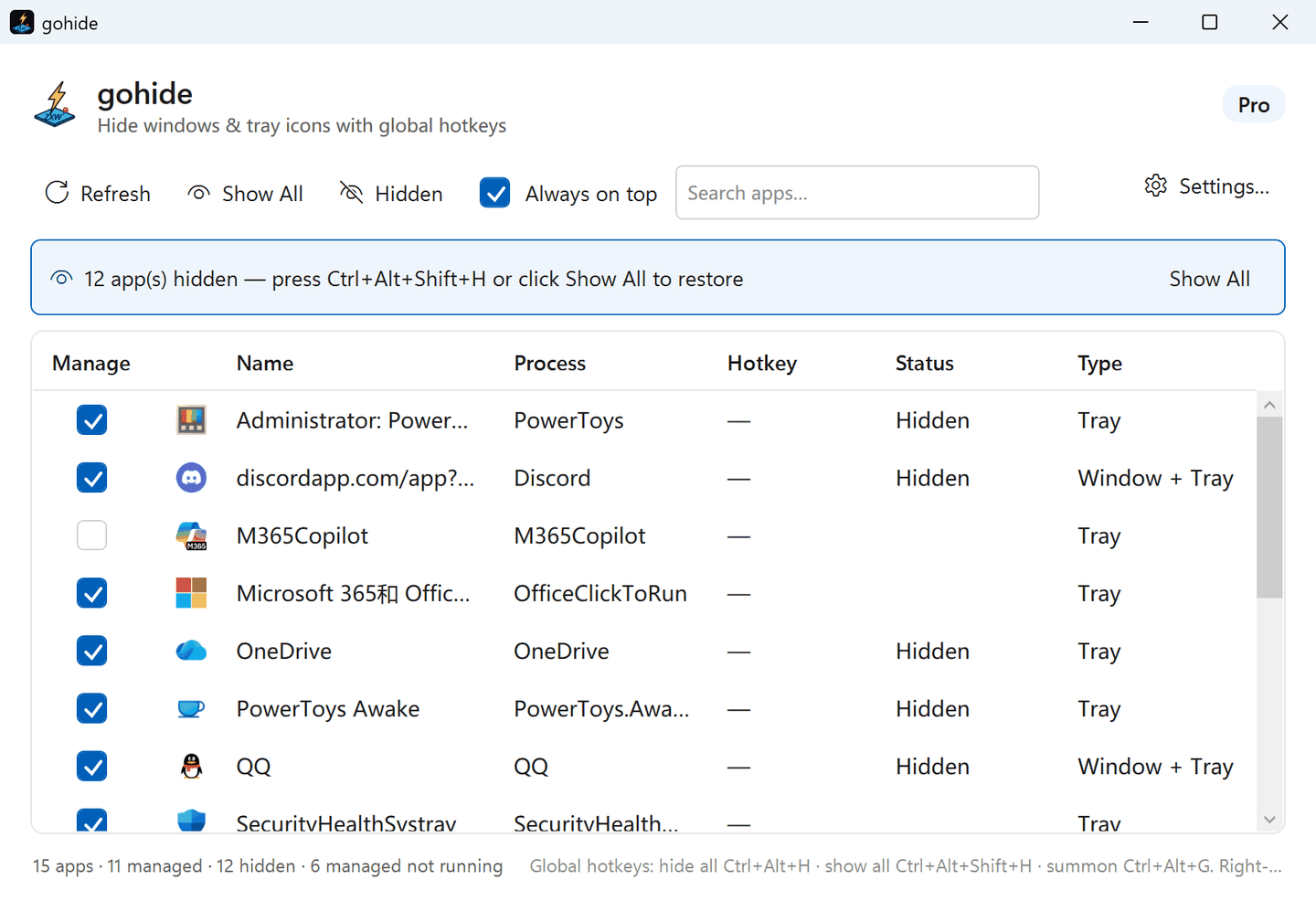
gohide lists running apps (and tray-only ones). Tick the ones you want to manage.
Assign hotkeys
One hotkey hides everything, another brings it all back — both remembered in every edition. Add per-app hotkeys if you like (Pro remembers those too).
Hide & restore
Hit the hotkey — the windows and tray icons you chose hide. Hit it again — everything's back, exactly where it was.
Features
One tool to hide windows and tray icons cleanly
Alt+Tab isn't hiding: the taskbar still shows the app, the tray icon is still in the corner, the sound still plays. gohide removes every trace you choose — and restores it cleanly — including on the latest Windows 11.
Hide windows & taskbar entry
Remove an app's windows and its taskbar button in one move. Nothing flashes on screen; nothing lingers in Alt-Tab.
Hide system-tray icons
gohide hides apps' tray icons too — not just their windows — and keeps them hidden until you restore them. It works on the latest Windows 11 notification area.
Stays hidden when it opens a new window
A hidden chat app gets a message, a hidden browser opens a link, a launcher pops an update prompt — that new window is caught and hidden too, so a hidden app can't put itself back on screen. Free, and on by default.
Global hotkeys
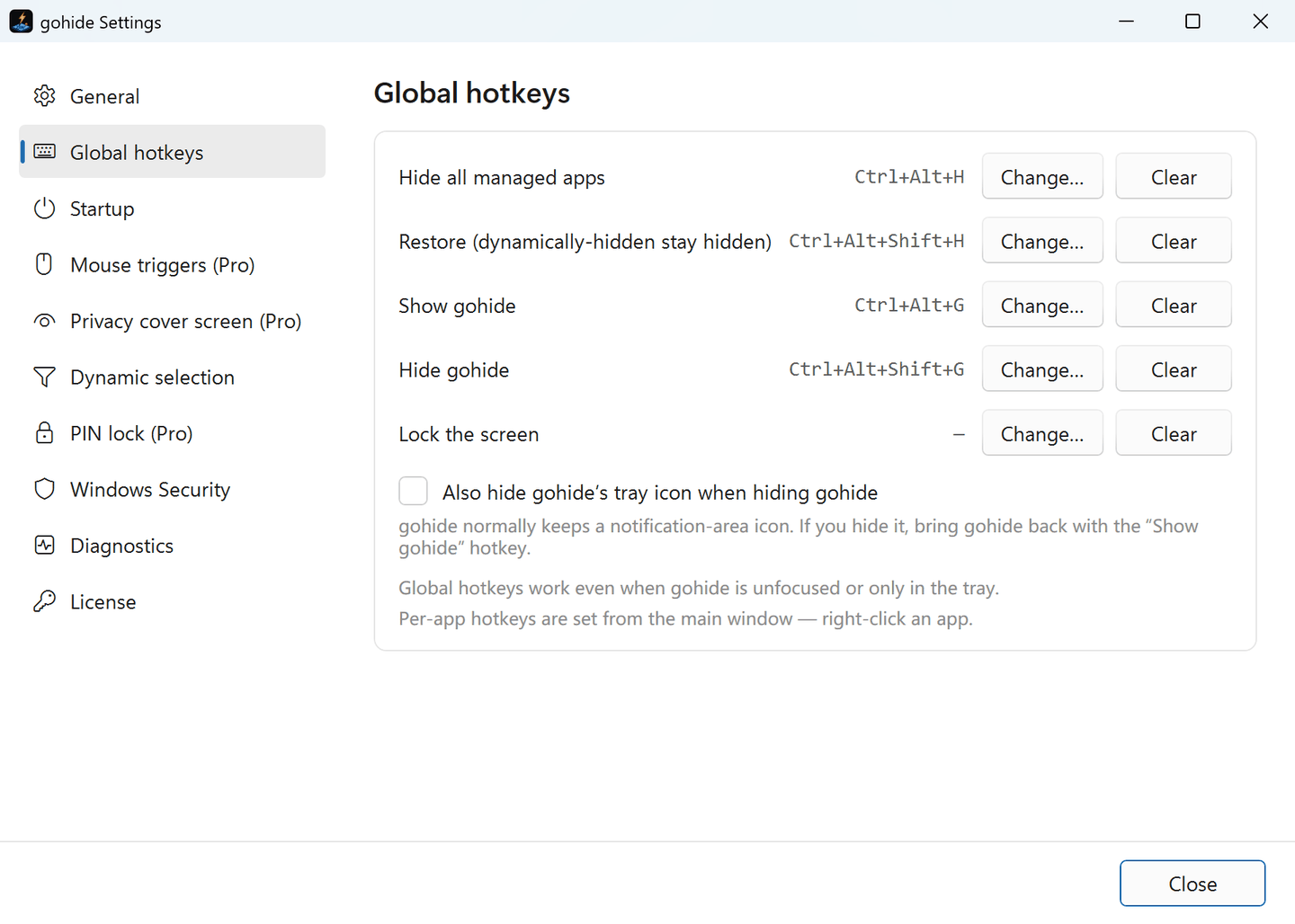
One hotkey hides everything at once; each app can also get its own hide/show hotkey, and another brings up gohide. They all work system-wide, even when gohide is just a tray icon.
Restore all at once
One hotkey brings everything back at once — nothing gets stranded, and everything returns exactly where it was. A second hotkey locks the screen outright when there’s no time to hide.
See exactly what's hidden
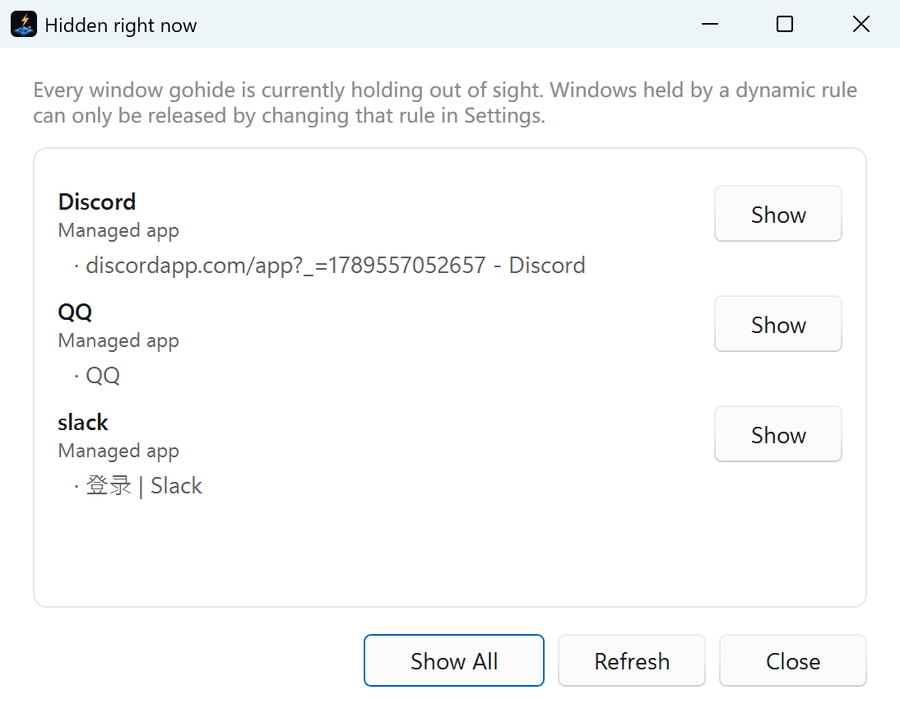
The “Hidden right now” list — one click from the toolbar or the tray menu — shows every window gohide is holding out of sight, with the title it had and what is holding it. Bring a managed app back right from the list.
Crash-safe: nothing gets stranded
If gohide is killed from Task Manager or crashes while apps are hidden, those apps keep running — but their windows are invisible and nothing is left to bring them back. gohide writes down what it hid, so the next launch restores it all: windows shown again, suspended processes resumed, tray icons returned.
Mute while hidden — or suspend it
Muting a hidden app is free: the game or video you just hid goes silent instantly. Pro adds suspend — the whole process freezes, so a hidden game stops using CPU and GPU altogether and resumes exactly where it was. Critical Windows processes are never suspended.
Start with Windows, elevated
Start automatically with Windows, already elevated, with no UAC prompt — via a Task Scheduler task, not a fragile Run key.
Six languages, accessible
English, 简体中文, Deutsch, Français, 日本語 and 한국어, in the same terms Windows itself uses. gohide follows your Windows language or keeps the one you pick — Free remembers it too. Screen-reader labels and Windows contrast themes are supported.
Store, winget or portable
Get the Microsoft-signed copy from the Microsoft Store, install with winget install gohide.gohide, or unzip the portable build and run it from any folder or USB stick — no installer, nothing written to the registry.
Light and fast
gohide stays small and quiet — no bloat, no background web services, no account servers. It barely touches your system resources.
See it for real
The actual interface — not a mockup
Pick the apps to manage, give them hotkeys, and hide them — window, taskbar button and tray icon — with one keystroke.
What you get in Settings
- PIN lock (Pro)
- Require a PIN to open Settings. Someone who grabs your mouse can't undo your rules, reassign your hotkeys or switch off the privacy cover — while your own hide and restore hotkeys stay instant.
- Privacy cover screen (Pro)
- Hit “Hide all” and a full-screen image covers every monitor — your own picture or a plain dark screen, Esc takes it down. Or switch to cover-story mode: gohide pushes a real app you nominate to the front instead.
- Mouse & hot-corner triggers (Pro)
- Pick a screen corner, a mouse side button, or both. Slam the pointer into the corner and gohide hides everything — handy when your hand is already on the mouse.
- Dynamic selection (Pro)
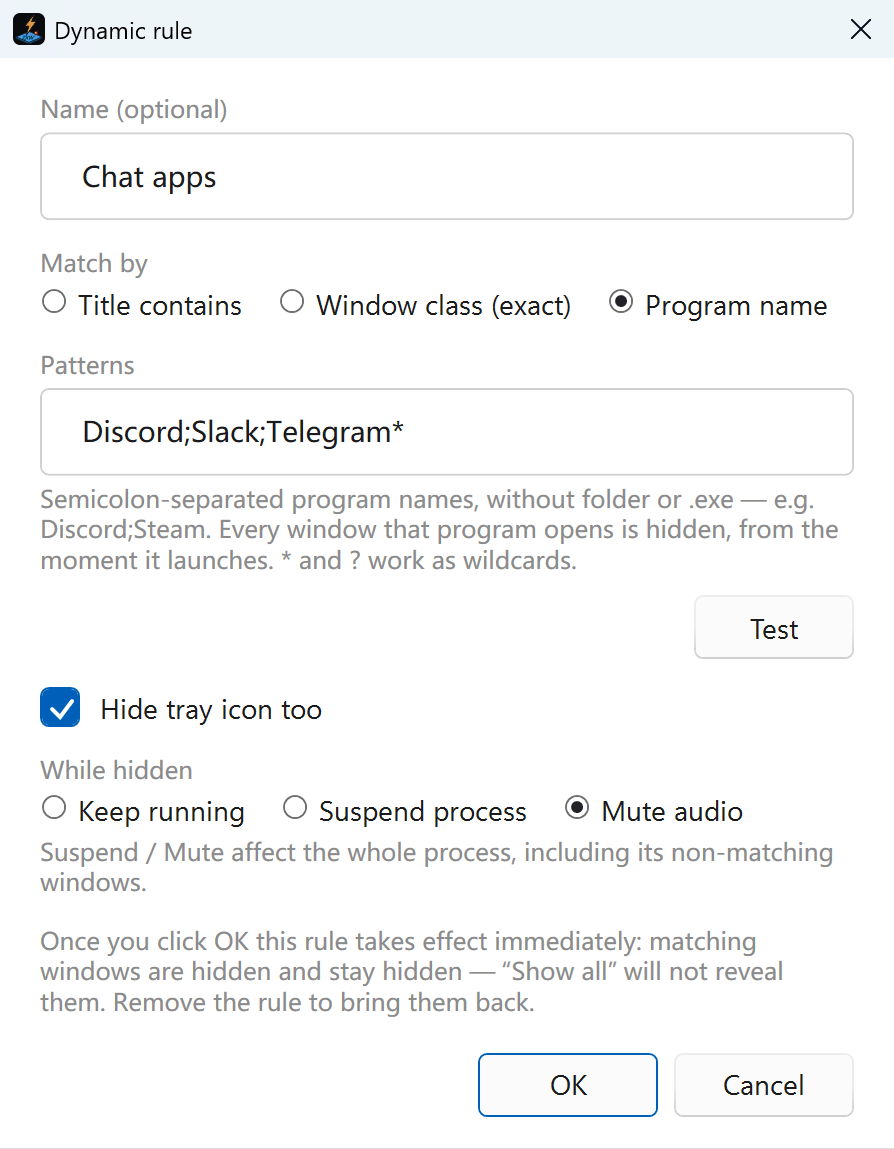
- Match windows by program name, title or window class — * and ? wildcards included — and gohide hides new ones the moment they open. Built for apps that keep spawning windows, like File Explorer or a chat client.
- Five global hotkeys — free
- Hide all, restore all, show gohide, hide gohide, and lock the screen. They fire even when gohide is unfocused or sitting in the tray, and each app can have its own hotkey too.
- Hide gohide itself
- Send gohide's own window away and, if you want, its notification-area icon with it — your Show-gohide hotkey brings it back.
- Startup, theme and language
- Launch at sign-in with the rights it needs and no UAC prompt, start straight to the tray, follow the system theme or pin light/dark, and pick from six interface languages.
- Defender exclusion, one click
- Using the direct download? One click adds gohide's folder to Defender's exclusions if it ever flags it by mistake — and removes it just as easily. Not needed for the Microsoft Store version.
Use cases
Built for the moments that matter
Whether you're at work, gaming, or sharing one PC, gohide gives you a clean screen that shows only what you want — in a second — and brings everything back with one key.
Focus & presenting
Before you screen-share or present, one hotkey clears away chat, email and every other off-topic window — a clean, professional screen that shows only what you mean to show. One key restores it all afterward, without interrupting anything that was running.
Game boss key
The classic boss key, modernized: one hotkey hides the game window, its taskbar button and the launcher's tray icon in the corner (Steam, for example) — exclusive full-screen games included, with the display handed back so your desktop isn't left at the game's resolution. Mute-on-hide is free; Pro can also suspend the process so CPU drops to zero. Everything comes back exactly where you left it.
Shared / family PC
Sharing one computer and still keeping your own space: hide your private apps with a keystroke and summon them back when you need them. Everything runs locally and uploads nothing — your privacy stays on your own machine.
Streaming & recording
Before you go live, record or demo, clear your private windows, flashing taskbar buttons and the tray icons in the corner in one keystroke, and mute them so no notification chime reaches the stream. Works with any streaming app, in the free edition. Need to flip a tool window in and out mid-stream? Pro hides it with one press of the middle mouse button and brings it back with the next. Stepping away? Hide everything and put up your own “Be right back” picture (Pro).
Trust & privacy
Built to be trusted on your machine
gohide is engineered to be safe and transparent by default: it runs locally, changes nothing permanently, and is easy to verify.
Fully reversible
Nothing gohide hides is ever deleted or permanently changed. One keystroke restores every window, taskbar button and tray icon exactly where it was — and gohide only acts on your own windows on your own machine.
Pay once, own it
A one-time purchase, not a subscription. You activate by importing a signed license file — no account. While you're online, Pro quietly refreshes that file once a year (sending only a machine ID and fingerprint), and a PC that is never online keeps Pro for good by re-importing a fresh file offline about once a year.
No accounts, no tracking
gohide has no accounts and no analytics, and runs no background web service — it never sees or sends what you hide.
Clean and contained
gohide keeps to itself: it doesn't change the apps you hide, and removing gohide leaves your system exactly as it was.
Take back your taskbar.
Download gohide free and hide your first app in under a minute.