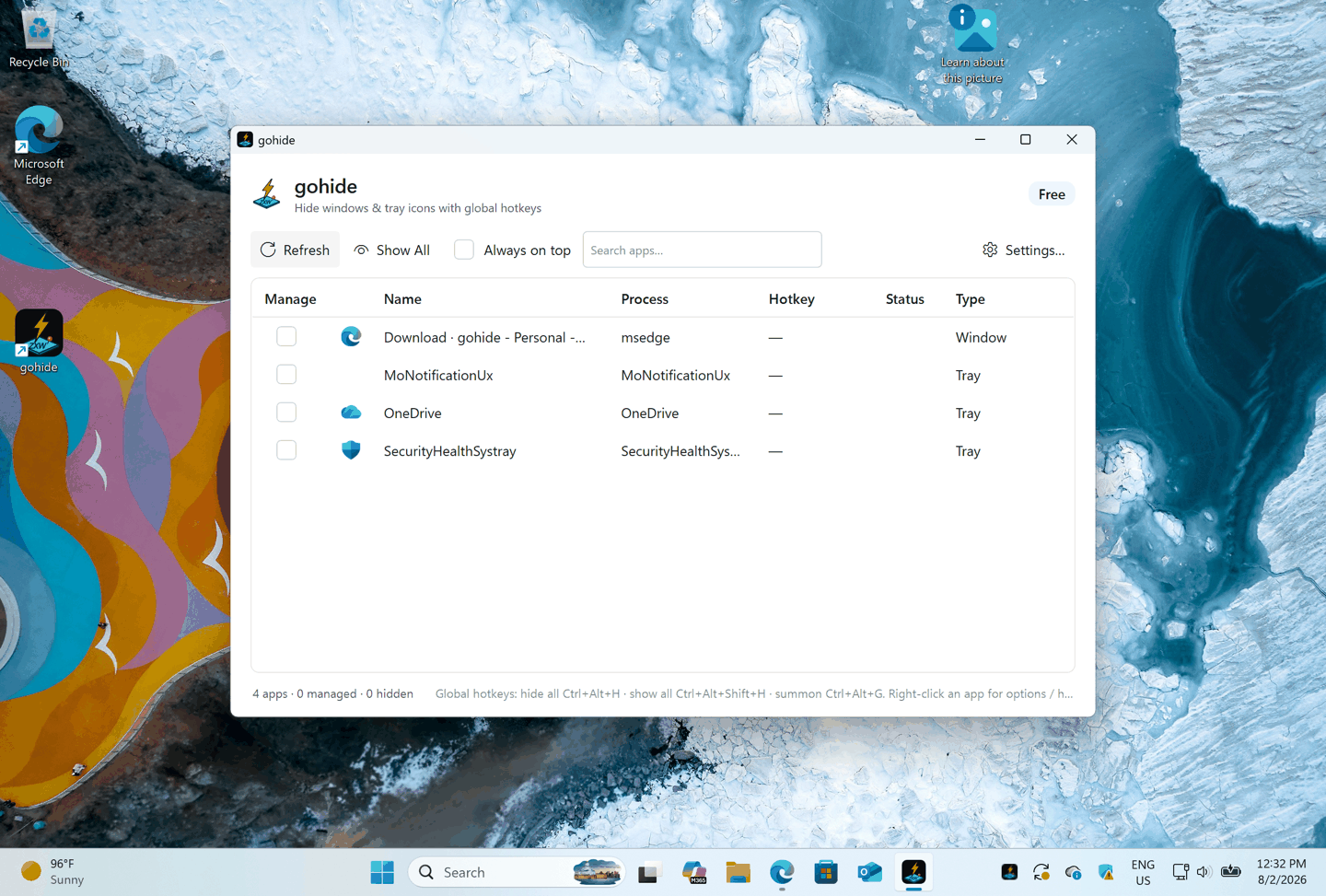
If Windows blocks or warns you
These warnings apply to the direct download, which isn't code-signed with a paid certificate yet. They are a reputation signal, not a virus detection — the same prompts appear for any new, independent app. Installing from the Microsoft Store skips the download and SmartScreen steps entirely; it does not change the Smart App Control limitation below. If you stay with the direct download, here's how to get past each step and how to verify the file is genuinely ours.
Skip the download warnings: install from the Microsoft Store
gohide is on the Microsoft Store, signed by Microsoft. Sections 1 and 2 below don't apply to it: no browser warning, no SmartScreen, nothing to unblock, and updates are automatic. It still asks for admin once at startup, and if your PC has Smart App Control on, the tray-icon limitation in section 3 applies to the Store version too.
1. "This file might harm your device" (browser)
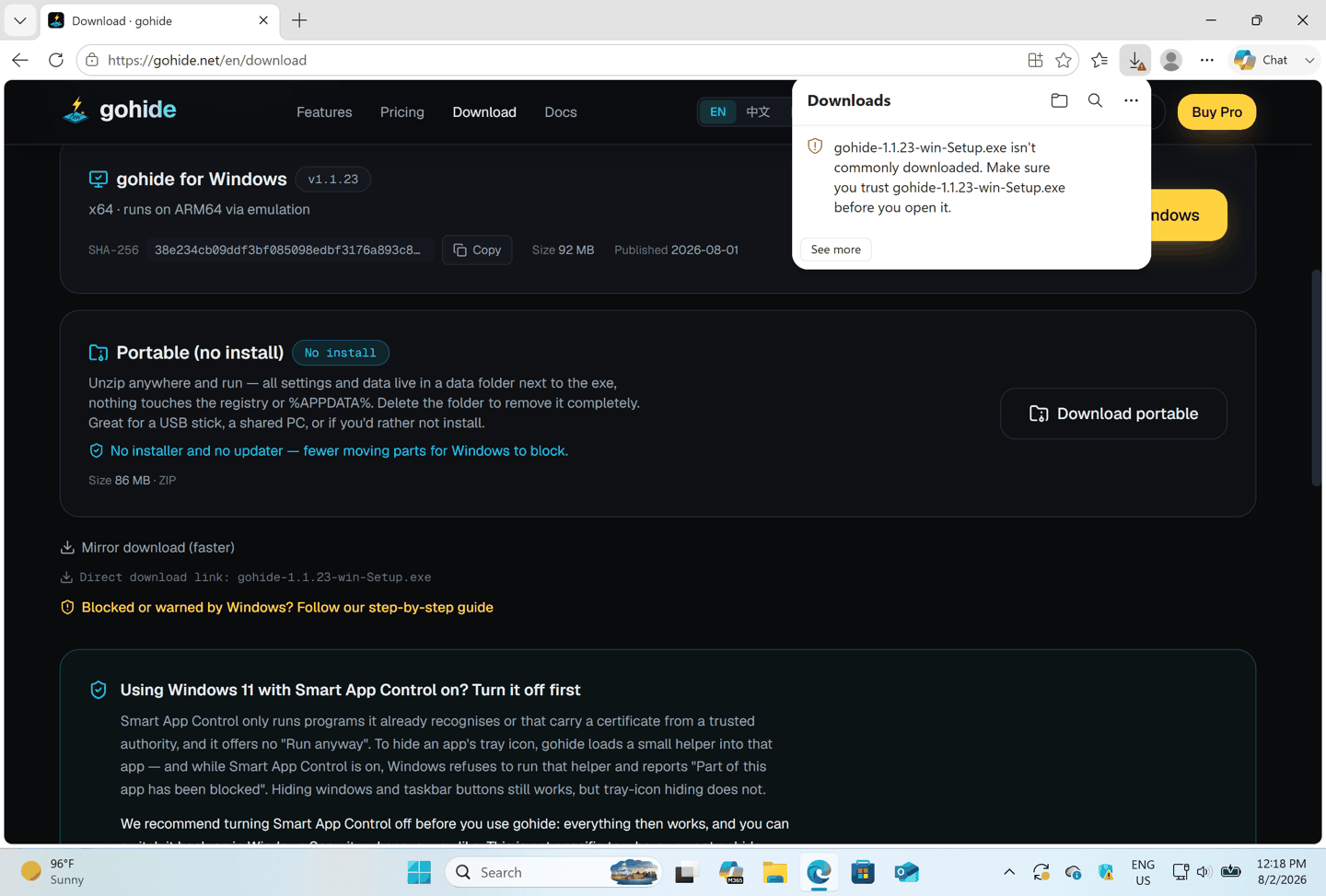
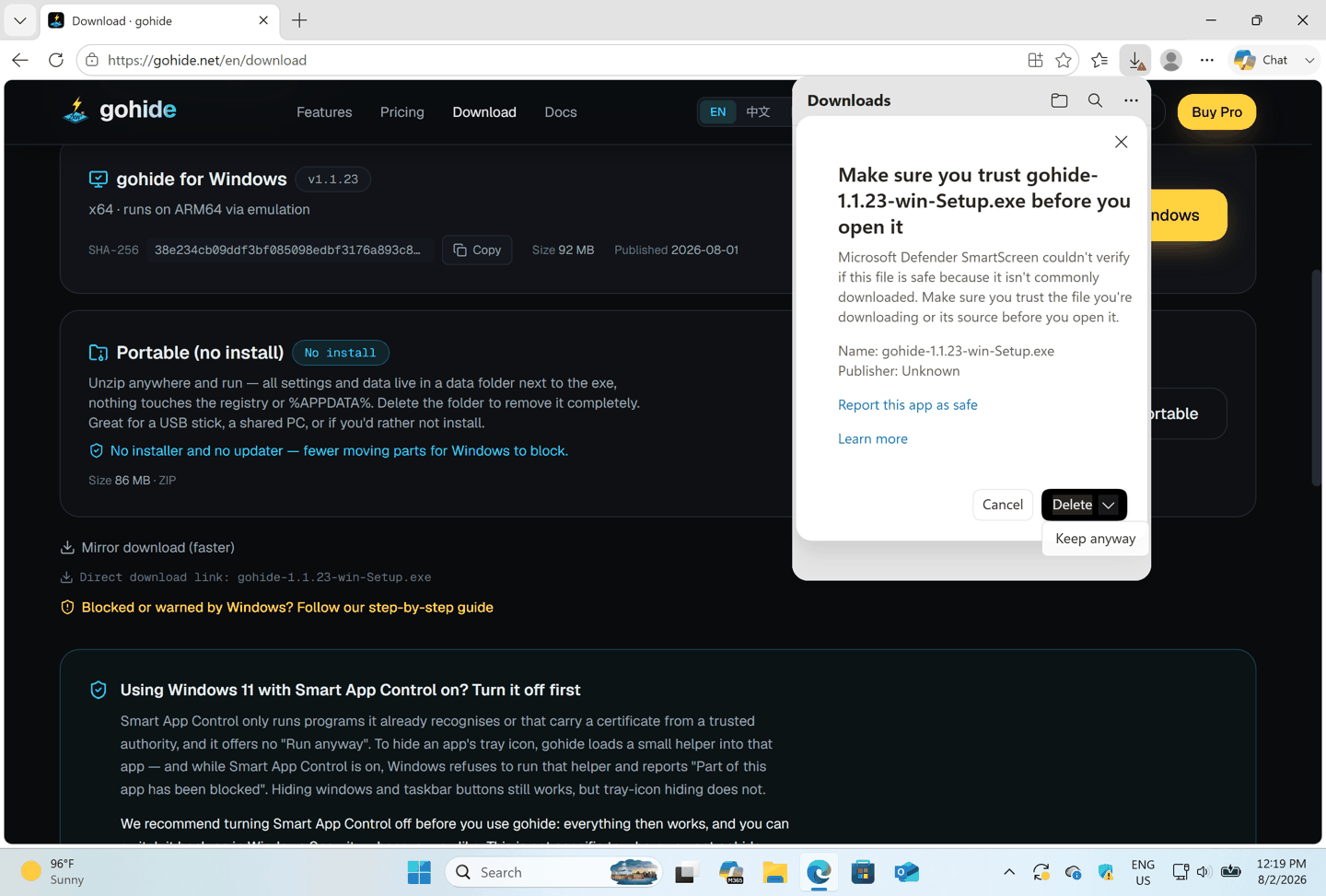
Your browser may flag the download simply because it's new and unsigned. Keep the file:
Microsoft Edge
- 1In the downloads bar, hover over the gohide Setup file and click the "…" (More actions).
- 2Choose Keep.
- 3If Edge asks again, click Show more, then Keep anyway.
Google Chrome
- 1Click the "…" next to the download, or open chrome://downloads.
- 2Choose Keep.
- 3If prompted again, click Keep anyway.
Firefox
- 1Open the downloads panel and right-click the file.
- 2Choose Allow download, then open it.
2. "Unknown publisher" prompt (UAC)
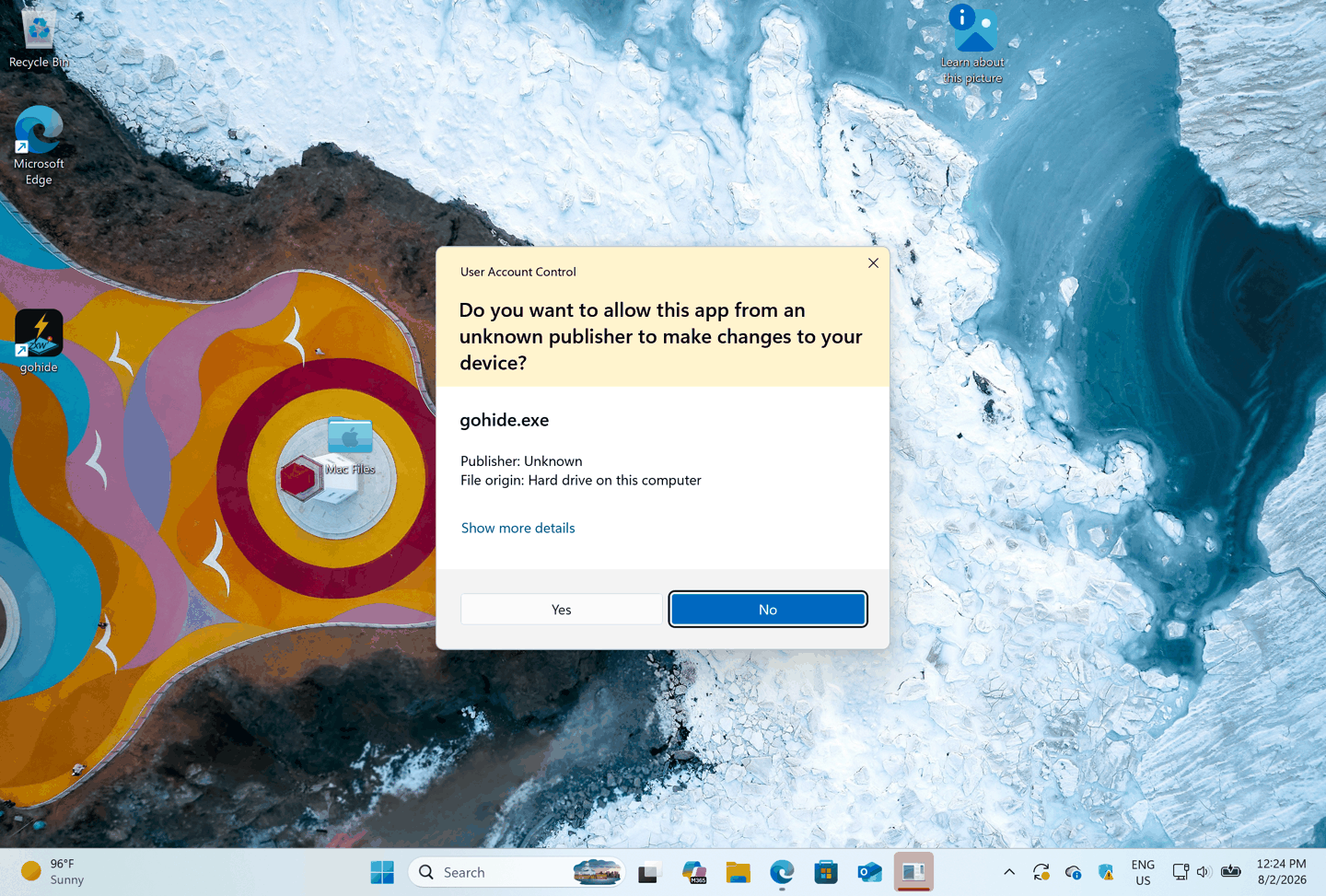
gohide isn't signed, so when it starts (it elevates once to manage windows and the tray) Windows shows a User Account Control prompt from an "unknown publisher". If you instead double-click the installer from File Explorer, you may first see a blue "Windows protected your PC" SmartScreen — click More info, then Run anyway. To allow gohide:
- 1The prompt names gohide.exe with Publisher: Unknown.
- 2Click Yes to let it run.
- 3Installing from the Microsoft Store skips the download and SmartScreen steps; the one admin prompt at startup remains either way.
3. Smart App Control blocks tray-icon hiding (turn it off)
Smart App Control doesn't warn — it refuses, with no button to click past. gohide itself installs and runs normally, and hiding windows and taskbar buttons works. What it blocks is the small helper gohide loads into an app to hide that app's tray icon: Windows reports "Part of this app has been blocked" and the icon stays put. With the direct download it can also block the updater ("An Application Control policy has blocked this file"). We recommend turning it off before using gohide — it can be switched back on later.
Why this happens
Smart App Control runs only two kinds of program: those Microsoft's app intelligence service already recognises as safe, and those signed by a certificate from a trusted authority. gohide's tray-hiding helper meets neither yet — a new app needs download volume before reputation accumulates, and our code signing certificate is in progress. This is not a finding that gohide is harmful; Windows simply cannot tell who published the helper. Because the block follows the helper's signature, it applies to the Microsoft Store copy as well.
How to check it, and turn it off
- 1Open Windows Security → App & browser control → Smart App Control settings.
- 2If it is set to On, that's what's blocking tray-icon hiding. Evaluation means it is watching but not blocking yet; no such section means your PC doesn't have the feature and something else is wrong.
- 3Select Off. Windows asks you to confirm — the setting is on the same screen, so you can select On again later, though that may need a restart to take effect.
- 4Restart gohide (or your PC if tray icons still don't hide), then try your hotkey again.
What we recommend
- Turn Smart App Control off (recommended). It is the one change that makes gohide work completely, it takes a few seconds in Windows Security, and you can turn it back on there whenever you want.
- Prefer to leave it on? Keep using gohide for windows and taskbar buttons — hotkeys, hide, restore and per-app control are all unaffected. Only tray-icon hiding is blocked.
- Either way, install from the Microsoft Store if you can. That removes every download and install warning and keeps gohide updated; it doesn't lift this particular block, since the block is on our helper's signature rather than on where you got the app.
One caution: some guides online tell you to disable it by editing the registry directly. Don't — getting it wrong can stop Windows booting, and the setting is right there in Windows Security, where it can also be switched back on.
4. If Windows Defender removed the file
Defender may quarantine the installer or gohide's helper files by mistake. Restore them:
- 1Open Windows Security, then Virus & threat protection.
- 2Under Protection history, find the gohide item.
- 3Open it, choose Allow (or Restore), then run the installer again.
Prevent it recurring (optional)
- 1In Virus & threat protection → Manage settings → Exclusions, click Add an exclusion, then Folder.
- 2Add the folder %LocalAppData%\gohide (where gohide installs).
5. Verify the download is authentic
Every release publishes a SHA-256 checksum on the download page. Confirming your file matches it proves it wasn't altered in transit:
Get-FileHash .\gohide-<version>-win-Setup.exe -Algorithm SHA256Run this in PowerShell in your Downloads folder, then compare the result with the SHA-256 shown on the download page. If they match, the file is exactly what we published.
Why does this happen? Is gohide safe?
Windows shows these prompts for any software not signed by a trusted certificate — it is a reputation signal, not a virus detection. gohide only hides windows and tray icons; it makes no harmful change to your system and everything it does is reversible. You can verify the file yourself with the SHA-256 above. Installing from the Microsoft Store removes the download and install warnings, and a code signing certificate — which we are working on — will clear the remaining Smart App Control block on our tray-hiding helper.